Ahnii!
Cursor now lets you pin agent chats to the top of your Agents panel. If you’ve ever scrolled through dozens of old conversations trying to find that one chat where you worked through a tricky problem, pinning solves that.
This post shows how to pin chats and why it’s useful.
How to Pin an Agent Chat
Right-click any chat in the Agents panel to open the context menu, then select Pin.
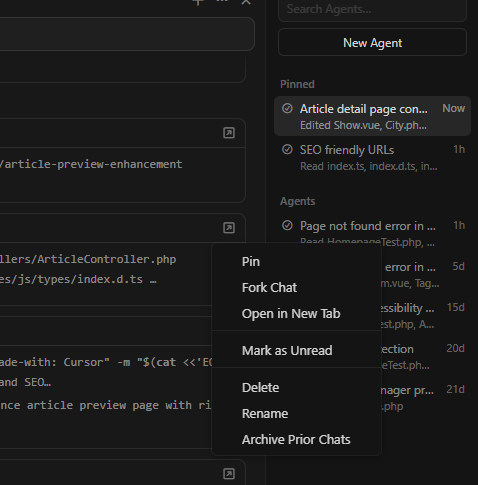
Pinned chats appear in a separate “Pinned” section at the top of the panel, above your regular chat history. You can see in the screenshot that pinned chats stay visible regardless of how many other conversations you’ve had since.
When to Pin Agent Chats in Cursor
A few scenarios where pinned chats pay off:
- Reference architectures — A chat where you worked out the structure for a feature and want to revisit the reasoning
- Project-specific context — Conversations where the agent learned details about your codebase that would take time to re-establish
- Ongoing work — Multi-session tasks where you keep returning to the same chat over several days
- Debugging sessions — Complex investigations you might need to reference later
The context menu also gives you quick access to Fork Chat (branch off a conversation), Mark as Unread, Rename, and Archive Prior Chats if your list gets cluttered.
Cursor Version With Pin Support
This feature appeared in Cursor 0.45.x (version string 2.5.26 in settings). If you don’t see the Pin option, check for updates.
Baamaapii